Manage Mappers
A mapper defines how messages are transformed from one type to another.
When creating a new mapper in 1Gateway, you define the input and output message types, general behavior, and optional parameters such as filters or history tracking.
Creating a New Mapper
In the Mapper List view, click + Add Mapper.

After naming the mapper, the Mapper Definition screen opens.
Mapper Definition Fields
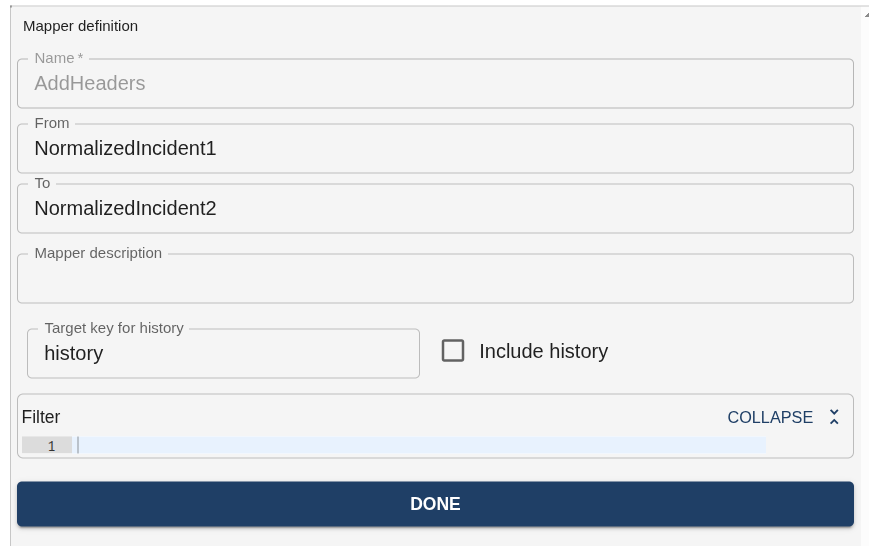
The Mapper Definition screen defines how the mapper processes messages and which transformations it performs.
| Field | Supported values | Description |
|---|---|---|
| Name | Text | The name of the mapper, set during creation. |
| From | Text | The input message type the mapper will receive. |
| To | Text | The output message type the mapper will produce. |
| Mapper description | Text | Optional short note describing the mapper’s purpose. Helpful for documentation and version tracking. |
| Filter | Groovy expression | Defines when the mapper applies. If the Groovy expression evaluates to true, the mapper runs; otherwise, the message passes through unchanged. |
| Include history | true / false | Enables message version tracking. When active, a branch is added to the message showing previous versions and changes. |
| Target key for history | Key | The message path where history information is stored when history is enabled. |
These settings can be adjusted at any point by clicking on the desired mapper and then on the Settings button:

Filter Example
Use filters to make a mapper apply only to specific message conditions.
For instance, this filter runs the mapper only for high-priority incidents:
msg.type == "incident" && msg.priority == "high"
If the condition is not met, the message is ignored by this mapper and continues unmodified.
Message history
Message history can be activated by going to a mapper settings and clicking Include History. The "Target key for history" defines where the version data is added within the message structure.
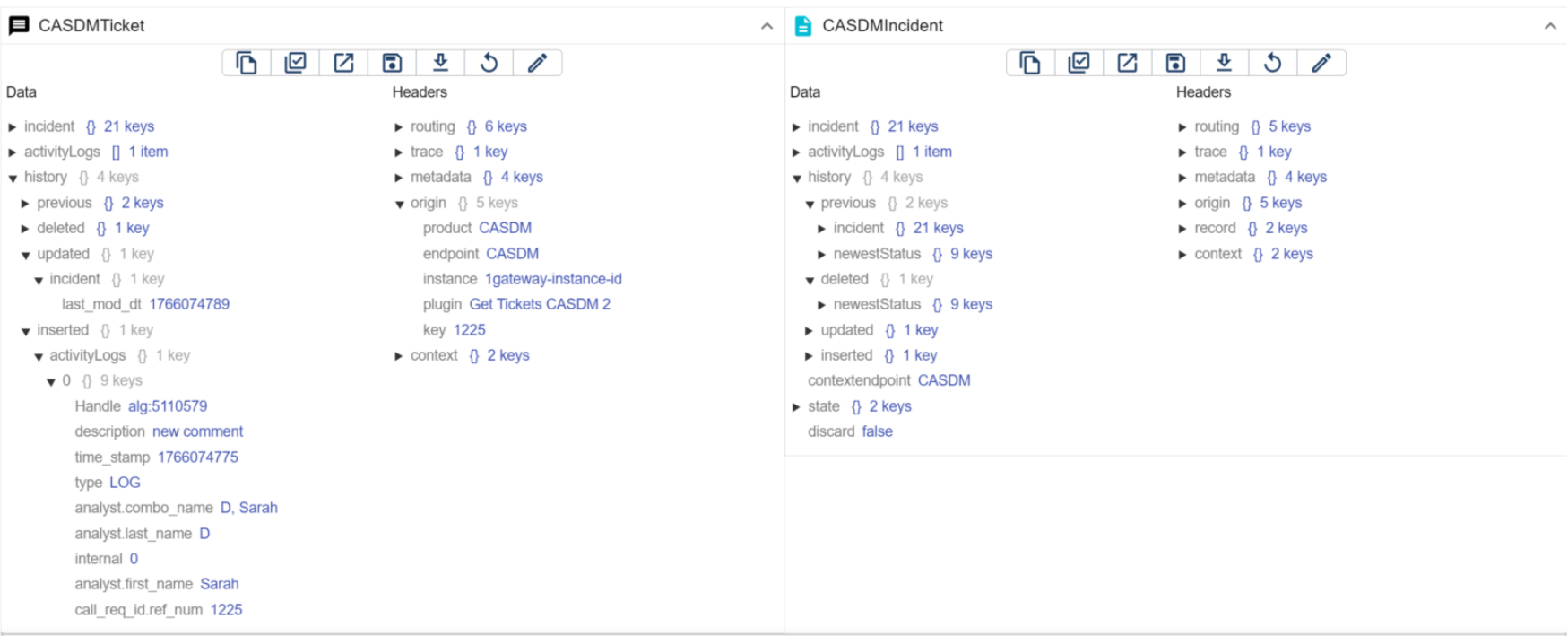
The message will include a history key with the changes made to the message since the last update. Messages are identified by the origin/key field in the message, which is used to keep track of message changes.
The history key consists of four sections:
- Previous: previous instance of this message
- Deleted: what fields in the message have been deleted since the previous update.
- Updated: what fields in the message have been updated since the previous update.
- Inserted: what fields in the message have been inserted since the previous update.
Example of Message with History Tracking