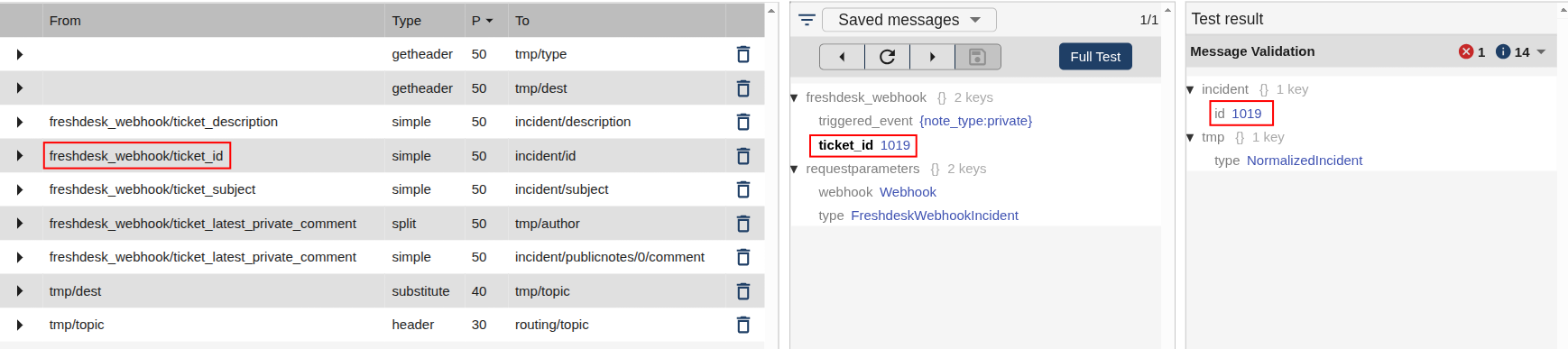
Testing a Mapper
Testing allows you to verify the mapper’s transformation logic using real or saved messages.
You can perform tests directly within the Mappings and Test Panel.
How to Test a Mapper
- Open your desired mapper.
- Select or upload a test message (JSON format).
- Click the refresh button or Full Test to apply the mapper transformation.
- Review the Test Result section to see the output message.
You can test with messages either:
- Retrieved from connected endpoints, or
- Uploaded manually via Saved Messages.
Test Message Navigation
The test interface provides several controls to help you explore and refine your mappings.

- Next / Previous Message: Browse available messages that match the mapper’s message type.
- Refresh Message: Reprocesses the current message without resending it. (No API calls are made.)
- Filter Message: Filter by content to locate specific test data.
- Full Test: Executes a full test, including API calls within the mapper.
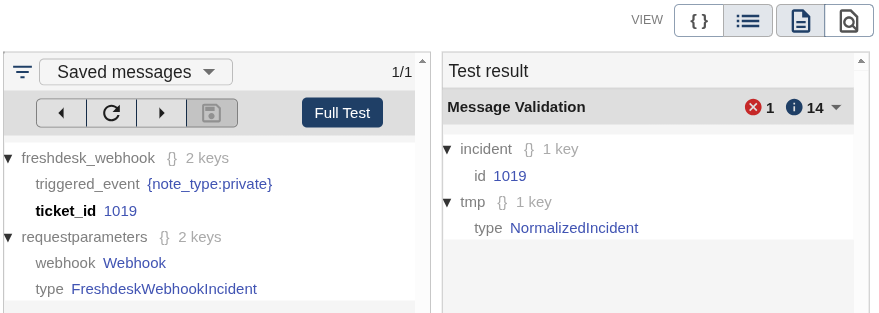
Fields displayed in bold are those affected by one or more mappings.
For example, in the screenshot below, the ticket_id field appears bolded because it has been modified by an active mapping.