Plugin Administration
Connection Status
| Image | Status | Description |
|---|---|---|
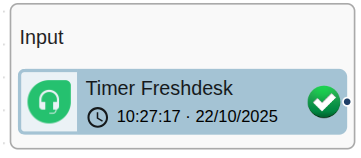 | Active | The plugin is operational and actively sending or receiving data. |
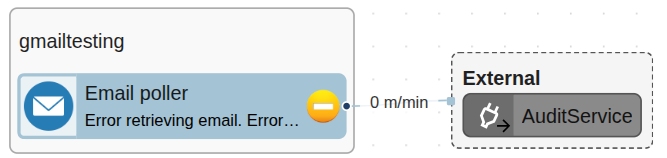 | Warning | The plugin is sending or receiving data but has encountered a non-critical error. Since we have configured the application property APPLICATION_AUDIT_MONGO in 1Gateway to include errors in the audit, we can see an "AuditService" plugin was created, indicating that the errors are being sent to the audit. To configure this function, see the System Configuration article. |
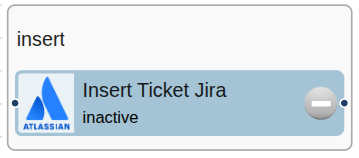 | Inactive | The plugin is not sending or receiving data. |
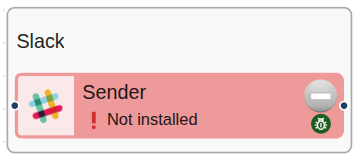 | Not Installed | The plugin is configured but has not yet been installed. This status can occur if you upload a plugin configuration for a plugin that has not yet been installed. |
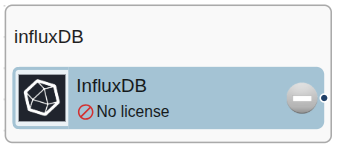 | No License | This status appears when you don’t have a valid license. To acquire or update your license, please contact 1Gateway Support or one of our verified partners. |
Troubleshooting Tips
-
Sender Plugin Not Receiving Messages: Ensure correct queue configuration and topic settings. Topics specify message subscriptions before sender mappers are applied.
-
Warning State: May signal message validation errors or minor issues not affecting overall plugin functionality.
-
Error State: Typically indicates configuration issues requiring manual correction, either in the plugin setup or applied mappers.
Investigating Warnings and Errors
To investigate warnings and errors further:
-
Review Plugin Logs: Access detailed error descriptions in the 1Gateway log via the left menu icon > Log.
-
Use Audit: Pinpoint specific messages causing errors using the Audit feature, accessible via the left menu icon > Audit.
Testing an Outbound Plugin
Outbound (Sender) plugin can be tested before sending data to external systems.
- Select the outbound plugin in the diagram.
- Click the TEST button.
- Select a sample message with the SELECT button.
- Run the test – results will display and can be hidden with RESULTS.
This ensures the plugin configuration is correct before going live.

Adding a New Plugin
You can add a new plugin directly from the main diagram view.
- Click the + New Plugin button (top-right of the diagram screen).

- A pop-up lists available plugin options.
- By default, only compatible plugins are shown. Switch the filter to All to view every plugin.
- Each plugin card shows its type and current version.

- Use the version dropdown to select a specific version.
- Click Select to add the plugin to your diagram.
Changing Plugin Versions
You can change the version of an existing plugin if compatibility or new features are required.
- Click the plugin in your diagram.
- In the configuration window, look at the top-left corner.
- Below the plugin type, find the version dropdown showing the current version.

- Select the desired version to update the plugin.
- Newer versions may not be compatible with older versions of 1Gateway.
- Older versions may lack features introduced later.
- Always verify compatibility before switching versions.
Configuration Version Control
Every time you configure a plugin, you can add a version description in the plugin details menu (right-hand side).

Each configuration change should include a version note to keep track of changes and maintain better version control.
To roll back to a previous Configuration Version, click the History button and choose which version to restore the plugin to.
