Audit
The Audit feature in 1Gateway provides visibility into what happens inside the system. It records important system events, message lifecycle details, configuration changes, and errors — all of which help you understand how data moved through your integrations and why certain actions succeeded or failed.
Use audit for operational insight, troubleshooting, and verifying behavior in integration workflows, especially when tracking incidents, failed operations, or unexpected behavior.
Audit is a key tool for:
- Understanding what happened to a specific message or incident
- Investigating why a processing step failed
- Retrying a failed action
- Verifying configuration changes
- Supporting troubleshooting and operational monitoring
Audit provides traceability across your integration workflows.
How to Access the Audit
The Audit page is accessible through the left menu button > Audit.
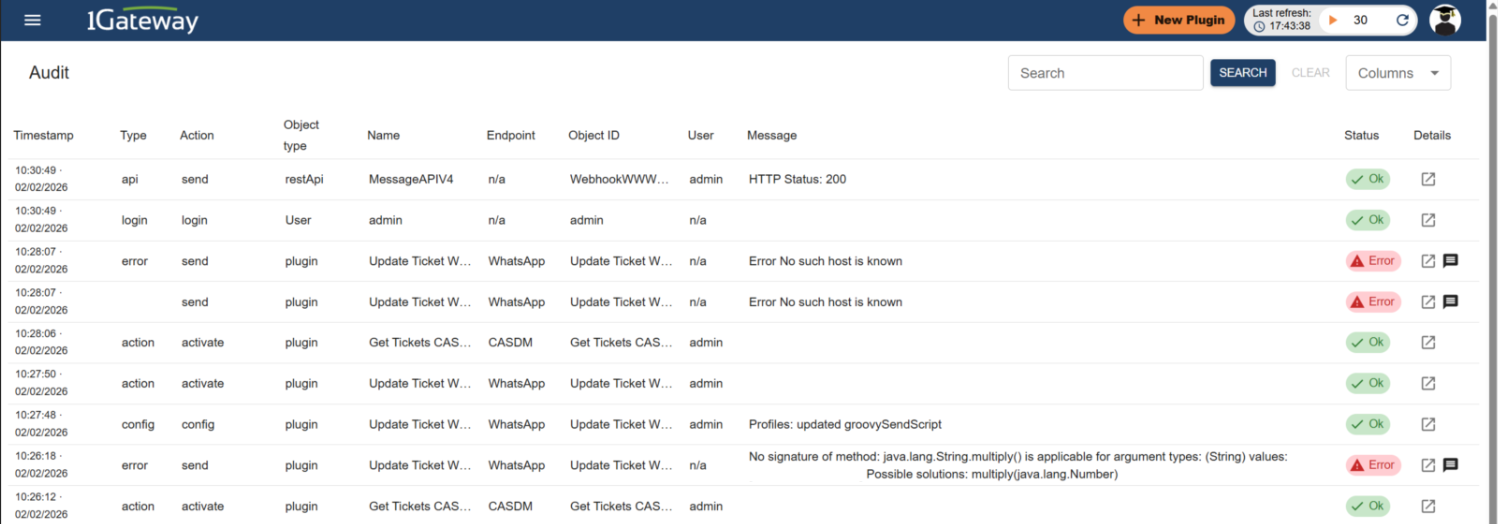
What Is Audited?
1Gateway creates structured audit records for key system events.
Each audit record includes:
- Type – Category of the event (e.g., action, error, config)
- Action – The operation performed (e.g., create, delete, retry)
- Object Type – The affected object (e.g., plugin, mapper, message)
- Object Name – The specific object involved
Audit can capture events related to:
- Message processing (inbound and outbound)
- Plugin execution
- REST/HTTP transactions
- Errors and exceptions
- User logins
- Configuration changes
- Activation/deactivation of components
This allows precise filtering and investigation.
Audit Configuration
Audit behavior is configured via application properties or environment variables.
| Setting | Description | Value |
|---|---|---|
| APPLICATION_AUDIT_MONGO | Filter what types of audit data should go to the Audit collection. | * |
| APPLICATION_AUDIT_MESSAGE | Filter what types of audit data should be published into 1Gateway for further processing. | error |
Example:
application.audit.mongo=action.*.plugin
application.audit.message=error.*.*
Filter Format
type.action.objecttype.objectname
Audit filters can include a * in any of the fields, used as a wildcard. The values for the different fields are:
- Type: action, login, record, config, error
- Action: create, delete, activate, deactivate, purge, retry, config, login
- Object Type: plugin, mapper, queue, message, user
Filter Examples
Log all plugin actions:
action.*.plugin
Log all errors:
error.*.*
Log actions for a specific plugin:
action.*.plugin.MyWebhook
Audit Retention
Audit retention can be controlled with the following properties:
| Setting | Description | Value |
|---|---|---|
| APPLICATION_AUDIT_AUDITRETENTION | How long do we want to keep audit logs (in days) | 300 |
| APPLICATION_AUDIT_AUDITRETENTIONPATH | Where old audit logs are stored in the file system when retention is applied. If no retention path is configured, old logs will not be archived externally. | 30 |
Troubleshooting
Audit is especially valuable when investigating integration issues. Below are common troubleshooting scenarios.
What happened to this incident?
Audit lets you trace the lifecycle of a message:
- Locate the audit entry for the message ID.
- Check whether it was received successfully.
- See if it passed through expected plugins.
- Review whether it was inserted, updated, or failed.
By reviewing the audit sequence, you can reconstruct the flow.
Why did the insert fail?
If an insert or update operation failed:
- Look for audit entries with:
- Type: error
- Object type: exception or httpTransaction
- Review:
- The HTTP status code (if applicable)
- Error details returned by the external system: Plugin errors, REST call failure details or Exception messages
- Mapper-related errors
Audit helps identify whether the failure occurred:
- During transformation
- During routing
- During REST communication
- Due to authentication or configuration
How can I retry sending a message?
Audit does not automatically resend messages, but it helps determine:
- Whether the message reached the communication stage
- Whether the failure was temporary (e.g., authentication, endpoint unavailable)
- Whether the message can safely be reprocessed
To retry sending the message:
- Identify the failed audit entry with the message that needs to be resent.
- Go to the message tab to view the content of the message.
- Click on the Retry button in the message view. Retrying is also available through the Show messages UI.
Best Practices
- Enable error auditing in production environments.
- Use audit filters to reduce noise and focus on relevant events.